USB Tricks
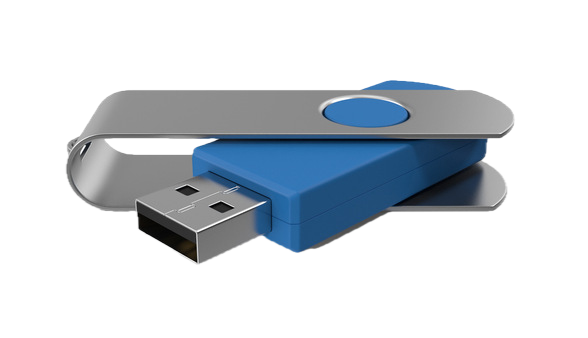
Running your code from a USB:
When started, using the start button the robot will default to running the last piece of code written in the editor. In some cases at the competition it can be useful to be able to run code from a USB stick.
- Place a file called
main.pyorcode.zip(which must include a file calledmain.py) in the root directory of the USB stick on another computer. - Turn on the robot using the red power button.
- The file will be automatically copied from the USB stick
- Press the black start button
Getting Logs
When running your robot code you can see the logs from the robot in the editor. Sometimes it’s useful to be able to view the logs later to analyse what happened.
- Insert a USB stick in the robot before turning it on.
- The log file will be automatically written to the USB stick as
logs.txt - Remember to fully power down the robot before removing the USB stick
Collecting images and raw analysis
Every time the robot takes a picture it is updated on the web interface, during development it is occasionally useful to be able to also keep a log of pictures that have been analysed to check camera focus, motion blur etc.
- Add a file with the name “collect_images.txt” to the USB stick to collect the images
- Add a file with the name “log_markers.txt” to the USB stick to collect analysis of images
- Insert the stick before turning the robot on
- Remember to fully shut down the robot before removing the USB stick WARNING: Collecting all images may slow down the processing time from your robot - Use with care!